Recommended specifications:
- 16:9 ratio - Videos appear best when they match this ratio
- 1920 x 1080
- H.264 codec
- MPEG-4 movie
- 15-30 seconds and loop.
- Lowest bit rate possible without losing too much quality
- Keep file size under 300mb
- Do Not letterbox the video [no wide screen cinematic]
- .MPG or .MP4 extension
- MPEG extension is not currently supported
- Valid video file types: https://kb.blackbaud.com/knowledgebase/articles/Article/23670
- Maximum file size:
- Basic upload is 1gb.
- Bulk upload: 1gb for all files combined.
- Maximum length for album title 255 characters.
- Maximum length for title 100 characters.
- Maximum length for caption 1600 characters.
- Maximum length for description No maximum length
Q: .mov files produce an error when uploaded
A: .mov is a supported file type, BUT not all can be properly converted by our application to play.
- Open file within Quicktime on a Mac and export the file in H.264 codec
Q: Error message adding a video file to a News item
A: If you go to a News Item >Edit or Add > + Add From Computer, and select a WMV or MP4 video, It then gives you the Error "The file is not a supported type and was not uploaded."
- +From Computer is only for Images, not Videos presently.
- Instead, upload the Video to the Video Category via Core > Content > Media > Video
- Upload the video
- Go to the News Item you want to add the Video to
- Click +Existing Video > select the video you wish to use
Q: My Video is stuck in processing when uploading
A: When uploading a new video, the Save button may not save the album with the video that is currently processing.
- Remove any special characters in the video's file name, for example ?, !, (), prior to uploading and clicking Save.
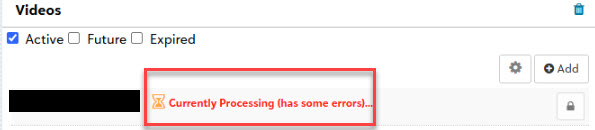
If you need to delete the video because it is stuck in processing you can:
- Navigate to the Course with the Stuck Video in the Bulletin Board
- Edit into Bulletin Board
- Scroll Down to the Videos Widget
- Click into the links with an issue
- This will open the delete video wizard
- Delete each failed upload in the album
- Save
Q: Why is my Video File name changing to a number after upload?
A: This is because the settings are not set up correctly in the Video Category itself.
- Navigate to School Website > Content > Media > Videos
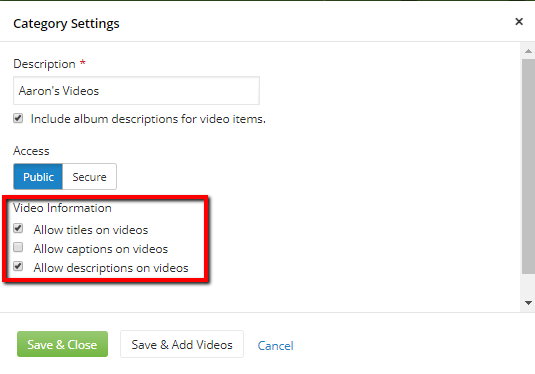
- Click on the Gear Icon on the line with the Video Category to be edited
- Ensure these 2 Video Information checkboxes are selected:
- Allow titles on videos, and
- Allow descriptions on videos
Was this article helpful?
That’s Great!
Thank you for your feedback
Sorry! We couldn't be helpful
Thank you for your feedback
Feedback sent
We appreciate your effort and will try to fix the article