Parents can make a one-time (single/manual/individual) payment in their account online or by calling Parent Support
Navigate to the the Parent website and sign in to your account
If this is your first time signing in, click I am a first-time user to create your account login
If you have never created a password or can not remember your Tuition Management login or password, click Forgot your username or password? to reset your username or password
If you have already connected your Tuition Management account to your Blackbaud.com account (BBID) but cannot remember it, you can reset it your password on Blackbaud.com. If you set up your BBID account to sign in using Google or Apple, you will need to reset your password through their website
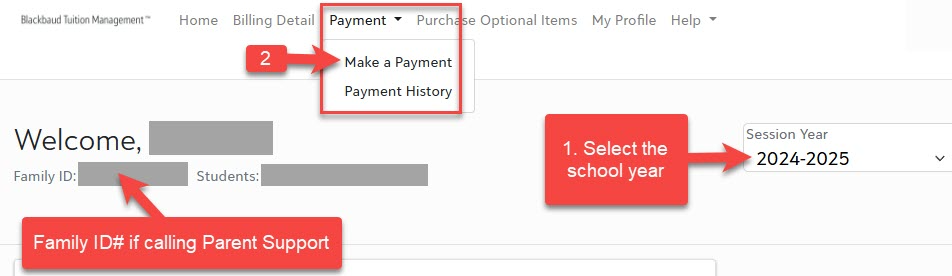
Select the Session Year (top-right, on every page) that you want to make a payment for
Click Payment (top menu bar)> select Make a Payment
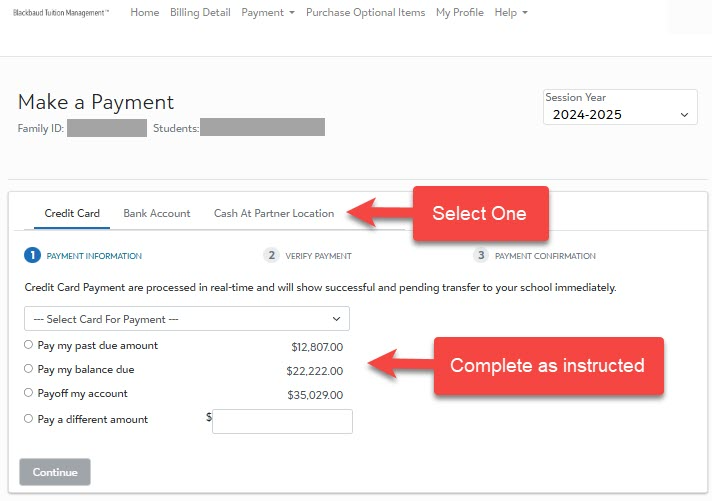
Select your preferred payment option> follow the guided prompts to submit a payment
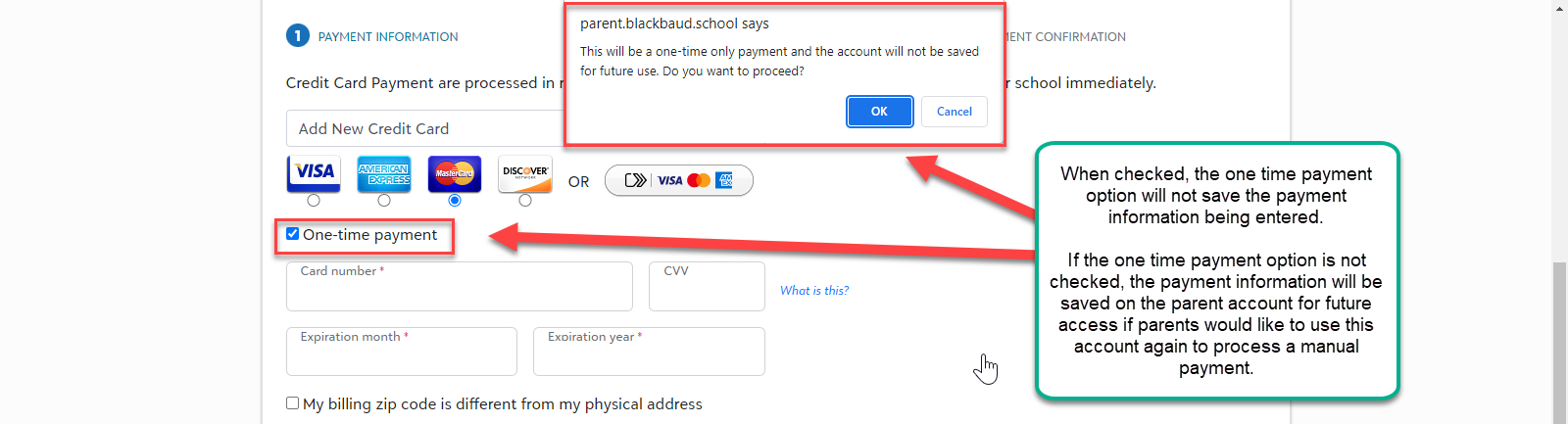
To save your payment information for future manual payments, DO NOT mark the box for One-time payment. If One-time payment is marked, the system will not save your payment information for use
Was this article helpful?
That’s Great!
Thank you for your feedback
Sorry! We couldn't be helpful
Thank you for your feedback
Feedback sent
We appreciate your effort and will try to fix the article